Table of Contents
Quick links for MS Excel statement practice.
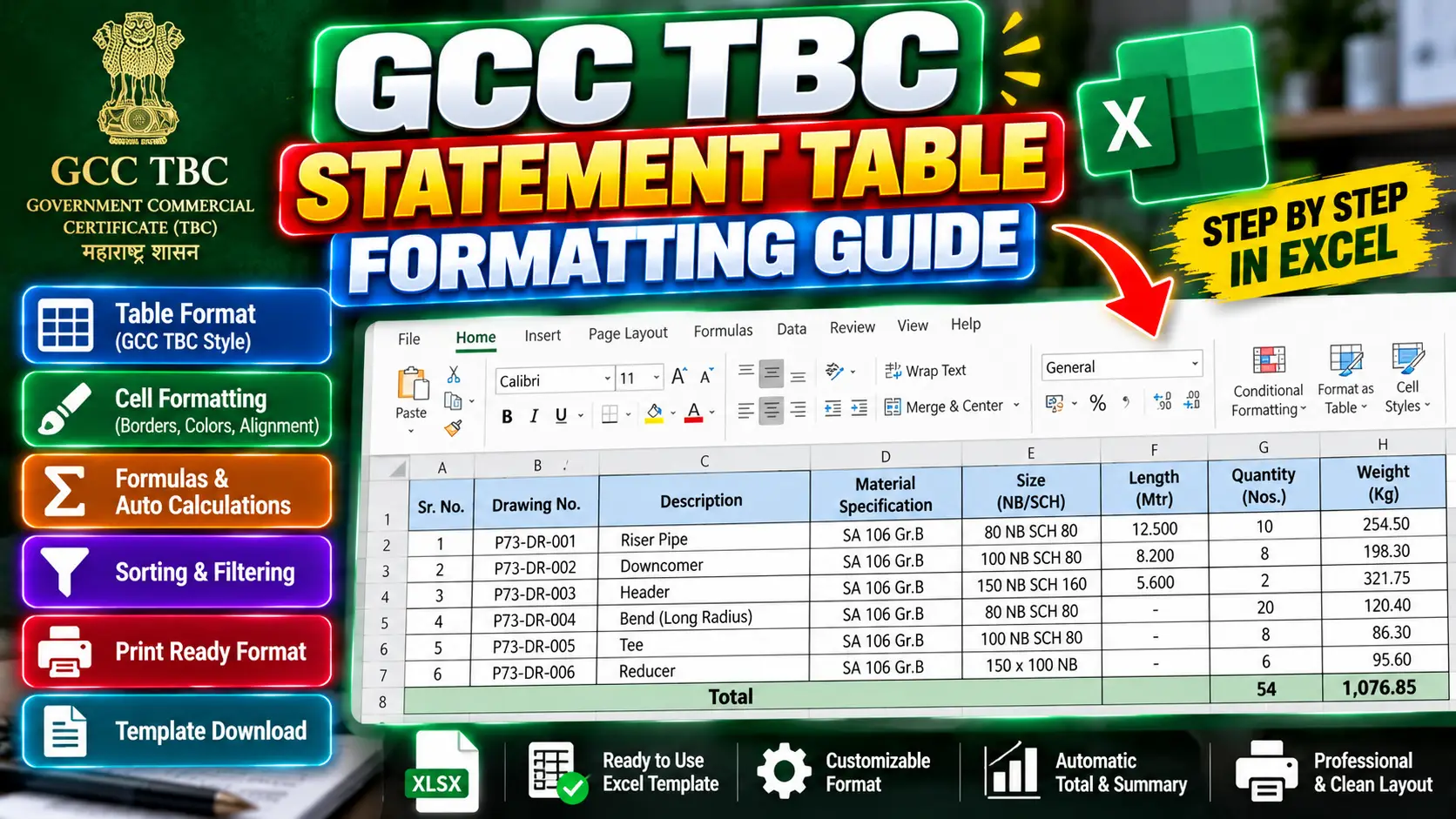
While candidates devote considerable effort to passing speed passages in commercial typing qualifications, the Statement (Table / Balance Sheet) practical evaluation carrying 15 marks is often where high grades are either secured or lost. In the Maharashtra State GCC-TBC examinations (30 WPM and 40 WPM tiers), this segment assesses data entry efficiency, numerical alignment, and structural formatting inside spreadsheet environments.
Typing digits accurately on the keyboard number row or dedicated numpad requires distinct motor patterns compared to standard text. As outlined in our guide on 10-Key Numeric Keypad Training, entering balance sheet figures under time constraints demands muscle memory that avoids peeking at keycaps. Let us examine the technical criteria examiners look for when inspecting your final workbook.
01. The 15-Mark Statement Breakdown
In our overarching Government Typing Exam GCC-TBC Guide, we noted that the practical examination is partitioned into speed passage transcription, formal letter formatting, and spreadsheet statement preparation.
The 15 marks allocated to the statement question evaluate four primary competencies:
Error-Free Transcription
Entering item descriptions, serial numbers, accounting account heads, and monetary values without omitted or transposed digits.
Cell Justification Rules
Applying left alignment to text labels, right alignment to numerical values, center alignment to serial numbers, and proper title merging across columns.
Dynamic Totals
Using official spreadsheet formulas (such as SUM, AVERAGE, or PRODUCT) rather than typing calculated values by hand.
Visual Layout Compliance
Applying proper interior thin gridlines, bold outer borders, double bottom underlines for grand totals, and designated font sizes.
02. Alignment, Font & Border Rules
Standard typographical rules dictate how data is arranged across financial tables. Violating standard cell alignments results in automatic mark deductions:
| Element / Column Type | Mandatory Alignment | Formatting Rule | Common Mistake |
|---|---|---|---|
| Main Statement Heading | Center (Merge & Center) | 14pt – 16pt Font, Bold, Uppercase | Merging beyond active columns |
| Serial Numbers (Sr. No.) | Center | Consistent column width (6–8 chars) | Left-aligned numbers |
| Text Descriptions / Particulars | Left Aligned | Auto-fit width to prevent text truncation | Centering long descriptive text |
| Numeric Values & Amounts | Right Aligned | Consistent decimal formatting (.00) | Left-aligning currency figures |
| Total / Grand Total Row | Right (Value) / Bold | Top thin border, bottom double underline | Manual calculation without SUM |
To accelerate formatting tasks without reaching repeatedly for the mouse, learn the core Windows productivity hotkeys cataloged in our Essential Keyboard Shortcuts Guide.
03. Mandatory Excel Formulas
A major point of failure for GCC-TBC candidates is typing pre-calculated totals by reading them directly from the printed question sheet. In modern computerized testing platforms, the software checks cell formulas dynamically. If you enter 45000 directly into a total cell instead of inserting an active calculation, the system assigns zero marks for formula criteria.
Standard Functions Required in Statements
- Column Sum: =SUM(D5:D14)
- Row Total (Price * Quantity): =PRODUCT(C5, D5) or =C5*D5
- Average Calculation: =AVERAGE(E5:E14)
- Deduction (Net Salary = Gross - PF): =E5-F5
04. Common Traps & Deductions
During statement evaluation, minor oversights can accumulate penalties quickly:
- Truncated Text (### Errors): When a column is slightly narrower than the entered figure or date, Excel renders hash symbols (
###). Always double-click column boundary dividers to auto-fit cell widths. - Missing Column Headers: Forgetting to bold column titles (
Ctrl + B) or neglecting to center-align headers above right-aligned numerical columns. - Improper Decimal Formatting: Mixing raw integer figures with decimal values. If currency requires two decimal places, apply numeric formatting uniformly across the column.
- Incomplete Gridlines: Applying borders only to interior data cells while neglecting header rows or total summaries.
05. Step-by-Step Practical Routine
Execute your spreadsheet tasks using this disciplined four-phase approach during practical tests:
Phase 1: Raw Input (Minutes 1–6)
Type all labels, serial numbers, and numeric values continuously without pausing to format fonts, borders, or colors.
Phase 2: Mathematical Functions (Minutes 7–9)
Enter all necessary calculation formulas for column totals, subtotals, and deductions. Verify that calculated totals match question sheet values.
Phase 3: Alignment & Merges (Minutes 10–12)
Merge and center table titles across data columns. Right-align numeric columns, center-align serial numbers, and left-align descriptions.
Phase 4: Borders & Final Review (Minutes 13–15)
Apply all borders, double-check that no column truncates text into ###, and save your workbook file safely.
Conclusion
Scoring 15 out of 15 marks on the GCC-TBC Excel statement test is entirely achievable when you adhere to standardized typographical alignments and avoid hard-coded mathematical calculations. By combining disciplined numpad typing with structured cell formatting, you ensure reliable performance on test day.
Strengthen your numeric speed and keystroke precision on TypeNest Academy's free drills.
Last Updated: October 2026
Author: TypeNest Editorial Team