📑 Table of Contents
Quick navigation for keyboard shortcut categories.
Introduction
Modern computers are powerful tools, but most people use only a fraction of their potential. Whether you're a student, office employee, engineer, programmer, freelancer, or business owner, a significant portion of your work involves interacting with a keyboard.
Unfortunately, many users perform repetitive tasks using a mouse even when faster alternatives exist. This may not seem important at first, but over time those extra clicks add up to hundreds of hours of lost productivity.
This is where keyboard shortcuts become valuable. Keyboard shortcuts allow you to perform common actions instantly using key combinations instead of navigating menus and clicking multiple buttons.
Why Keyboard Shortcuts Matter
Most computer tasks involve repetition. Copying text, opening files, switching windows, saving documents, and browsing the internet are activities people perform every day.
Using a mouse for every action requires additional hand movement and multiple clicks. Keyboard shortcuts eliminate unnecessary steps and allow tasks to be completed instantly.
Benefits of Keyboard Shortcuts
- Save time.
- Increase productivity.
- Reduce repetitive mouse movement.
- Improve workflow efficiency.
- Help maintain focus.
Basic Editing Shortcuts
These are the most important shortcuts every computer user should learn first.
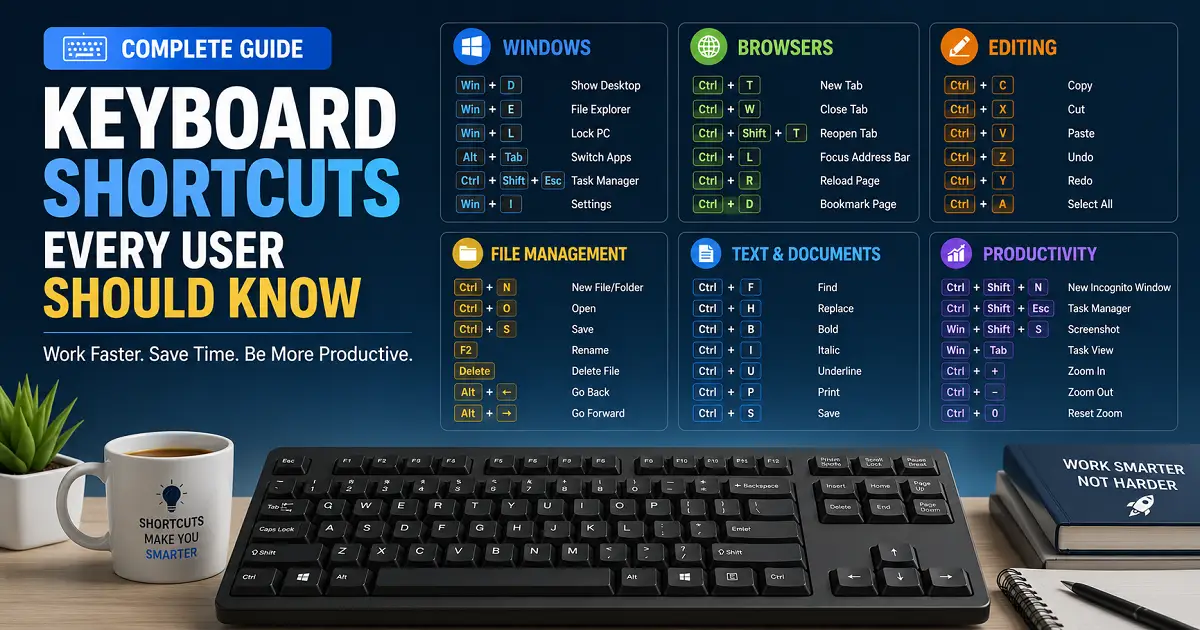
Ctrl + C (Copy)
Copies selected text, files, images, or folders to the clipboard without right-clicking.
Ctrl + V (Paste)
Inserts copied content into a new location instantly.
Ctrl + X (Cut)
Removes selected content and places it in the clipboard for relocation.
Ctrl + Z (Undo)
Reverses the most recent action instantly.
Ctrl + Y (Redo)
Restores actions that were previously undone.
Document Navigation Shortcuts
When working with large documents, efficient navigation becomes extremely important.
Ctrl + A (Select All)
Selects all content within the current document, webpage, or folder.
Ctrl + F (Find)
Search for specific words or phrases across pages instantly.
Ctrl + H (Replace)
Find and automatically replace words throughout a document.
Home & End Keys
Move the cursor directly to the beginning or end of the current line.
Browser Shortcuts Every User Should Know
Ctrl + T (New Tab)
Opens a new browser tab instantly.
Ctrl + W (Close Tab)
Closes the currently active tab without clicking the close icon.
Ctrl + Shift + T (Reopen Closed Tab)
Accidentally closed an important tab? This shortcut restores it immediately.
Ctrl + L (Address Bar)
Moves cursor directly to the browser address bar for instant URL typing.
Ctrl + Tab
Switches sequentially between open browser tabs.
Windows Productivity Shortcuts
Alt + Tab
Switches instantly between active applications.
Windows + D
Shows the desktop immediately. Pressing it again restores open windows.
Windows + E
Opens File Explorer instantly.
Windows + L
Locks your computer screen immediately for privacy.
Windows + Tab
Opens Task View and displays all active virtual desktops.
File Management Shortcuts
F2 (Rename)
Allows you to rename the selected file instantly.
Delete & Shift + Delete
Delete moves files to the Recycle Bin, while Shift + Delete bypasses the bin for permanent deletion.
Ctrl + Shift + N
Creates a new folder instantly in File Explorer.
Screenshot Shortcuts Every User Should Know
Print Screen (PrtScn)
Captures the entire display to the clipboard.
Windows + Shift + S
Opens the Windows Snipping Tool to select a specific region of the screen.
Windows + Print Screen
Captures the entire screen and saves it directly to your Pictures folder.
Microsoft Word & Excel Shortcuts
- Ctrl + B / I / U: Apply Bold, Italic, or Underline formatting.
- Ctrl + S: Save current document status immediately.
- Ctrl + Arrow Keys: Jump across populated spreadsheet cells in Excel.
- Alt + =: Insert automatic SUM formula in Excel spreadsheets.
Typing Productivity Shortcuts
- Ctrl + Backspace: Deletes an entire word to the left instead of single characters. Learn more about fixing typing errors in our Typing Mistakes & Fixes Guide.
- Ctrl + Left / Right Arrow: Jump cursor word by word for rapid text editing.
30-Day Keyboard Shortcut Learning Plan
- Week 1: Master Copy, Paste, Cut, Undo, and Redo.
- Week 2: Master Browser tab controls and Address Bar jumping.
- Week 3: Practice Windows application switching (Alt + Tab) and File Explorer.
- Week 4: Adopt application-specific Word and Excel productivity shortcuts.
Frequently Asked Questions (FAQs)
Are keyboard shortcuts really worth learning?
Yes. Studies show that using keyboard shortcuts instead of the mouse saves up to 8 days of work time per year.
Which shortcut should beginners learn first?
Start with Ctrl + C, Ctrl + V, Ctrl + X, Ctrl + Z, and Ctrl + S.
How do shortcuts complement touch typing?
Combining shortcuts with touch typing keeps your hands on the Home Row, avoiding muscle disruption caused by reaching for the mouse. Review touch typing fundamentals in our Beginner's Guide to Touch Typing.
Conclusion
Keyboard shortcuts are among the easiest ways to improve your computer productivity. Instead of relying on the mouse for every task, learning a few essential shortcut keys can help you navigate applications, edit documents, manage files, and browse the web much more efficiently.
To continue boosting your daily speed, test your baseline performance on TypeNest Speed Tests and explore our Complete Guide to Increase Typing Speed.
Continue Learning
- Complete Beginner's Guide to Touch Typing
- Complete Guide to Increase Typing Speed
- Complete Typing Accuracy Guide
- Typing Speed Benchmarks Guide
Last Updated: September 2026
Author: TypeNest Editorial Team