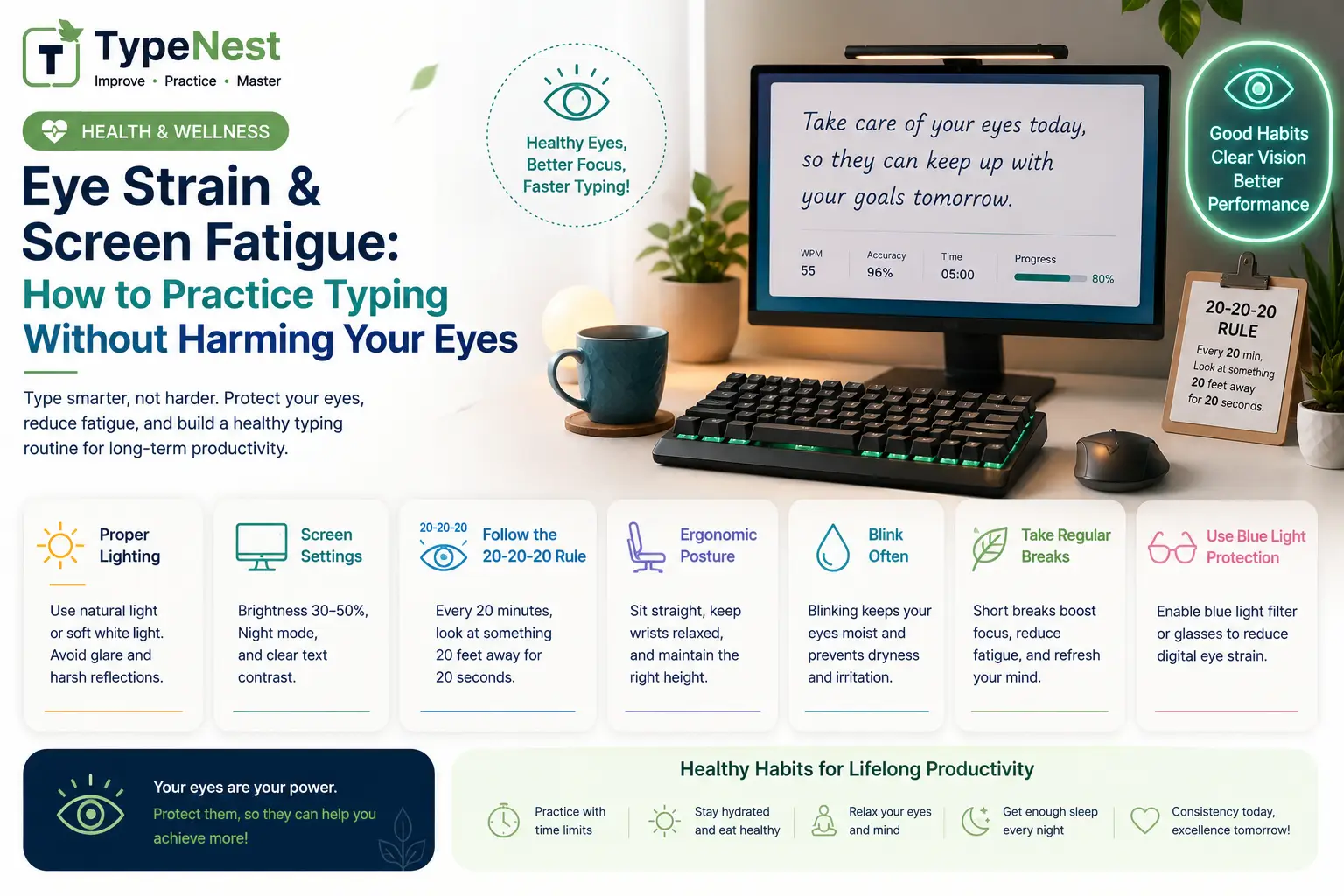
Whether you are practicing for state typing exams, working a remote data entry job, or writing code late into the night, your eyes endure intense digital demands. Staring at bright monitors for hours can cause Computer Vision Syndrome (CVS)—a condition marked by dry eyes, blurred vision, burning sensations, and persistent tension headaches.
Many typists push through eye discomfort, assuming it is an inevitable price of computer work. However, severe visual fatigue directly degrades your mental focus, leading to sloppy keystrokes, unforced errors, and a sudden drop in your Net WPM.
Protecting your vision while building keyboard mastery is fully achievable with simple adjustments. In this guide, we explore the science of digital eye strain, how theme options like Dark Mode reduce flicker glare, and practical daily habits to keep your eyes healthy during intense practice sessions.
1. Understanding Computer Vision Syndrome (CVS) in Typists
When you read physical paper, your eyes blink naturally about 18 to 20 times per minute. But when you stare intently at a computer screen during timed speed tests or coding tasks, your blink rate drops by over 50%.
Reduced blinking prevents tear films from lubricating your cornea, leading to dry spots, irritation, and reflex tearing. Combined with harsh blue light emission and screen glare, your eye muscles strain continuously to maintain focus.
Eye strain causes mental fatigue, which leads to subconscious finger hesitation. To learn more about proper posture and preventing physical strain, read our dedicated Typing Ergonomics Guide.
2. The 20-20-20 Rule: The Gold Standard for Visual Rest
Optometrists worldwide recommend the 20-20-20 Rule to prevent ciliary muscle spasm during prolonged screen work:
💡 How to Apply the 20-20-20 Rule
Every 20 minutes of typing practice, look away from your screen at an object at least 20 feet away for a minimum of 20 seconds.
Looking at a distant object relaxes your eye's internal focusing muscles completely, allowing tear films to replenish and preventing ocular fatigue.
3. Dark Mode vs. Light Mode: Which Is Better for Typing?
The debate between Dark Mode and Light Mode isn't just about aesthetic preference—it directly impacts ocular comfort depending on your room lighting:
When Dark Mode Excels
- Low-Light Environments: In dimly lit rooms, bright white screens emit intense contrast glare that taxes your pupils. Switching to Dark Mode on TypeNest drastically reduces blue light glare.
- OLED & Battery Efficiency: Dark themes conserve energy on modern mobile and laptop screens while minimizing overall luminance.
When Light Mode Excels
- Well-Lit Daytime Offices: In bright, sunlit rooms, Light Mode provides high contrast that improves legibility and reduces eye strain during fast reading.
| Lighting Condition | Recommended Theme Mode | Primary Benefit |
|---|---|---|
| Nighttime / Dim Room | Dark Mode (High Contrast) | Eliminates glare; minimizes blue light output |
| Bright Sunlit Room | Light Mode (Crisp Text) | Prevents screen reflections & text blurring |
| Late Night Coding / Writing | Dark Mode + Blue Light Filter | Protects melatonin production for better sleep |
Regardless of your preferred background theme, maintaining consistent accuracy requires clear visual legibility. Learn how to minimize errors in our Complete Typing Accuracy Guide and fix persistent typos using our Complete Beginner's Guide to Touch Typing.
4. Display Setup & Ambient Room Lighting Tips
Small adjustments to your workstation layout can significantly lower visual strain:
- Position Monitor Below Eye Level: Set the top of your screen at or slightly below eye level, roughly 20 to 28 inches (arm's length) from your face. This allows your eyelids to cover more of the ocular surface, reducing moisture evaporation.
- Match Ambient Brightness: Your display brightness should blend seamlessly with surrounding room light. If your screen looks like a glowing lightbulb in a dark room, it is too bright.
- Eliminate Direct Glare: Position your desk perpendicular to windows to avoid reflections, or use anti-glare screen protectors.
- Enable System Night Light / F.lux: Adjust display color temperature toward warmer amber tones after sunset to preserve healthy sleep cycles.
5. How Ocular Comfort Boosts Workplace Performance
Maintaining fresh, fatigue-free eyes allows you to sustain peak typing speed across multi-hour work shifts or intense examination sessions:
- Remote Careers: Customer support agents and data entry specialists type continuously for 8 hours daily. Building sustainable speed and endurance requires taking care of visual health.
- Civil Service Exams: Clear vision during timed passage tests ensures you read complex text accurately under time constraints.
- Coding Efficiency: Software engineers benefit from dark mode IDE setups when reviewing complex syntax and writing code blocks.
6. Hardware Upgrades that Enhance Comfort
Hardware plays a critical role in overall typing comfort. Pairing an eye-friendly display setup with a responsive mechanical keyboard creates a smooth practice environment:
- Tactile Mechanical Switches: Mechanical switches with a light tactile bump let you know when a key actuates without bottoming out heavily. Explore key switches in our Top Custom Mechanical Keyboards & Switches Guide.
- Interactive Practice: Break up intense practice sessions using structured drills and speed tools featured in our Complete Guide to Increase Typing Speed.
7. Frequently Asked Questions (FAQs)
1. Do blue light blocking glasses actually prevent eye strain?
While blue light glasses reduce glare and warm display colors, research shows that taking regular breaks using the 20-20-20 rule and maintaining proper screen distance are far more effective at preventing computer vision syndrome.
2. Why do my eyes tear up while taking a timed typing test?
During high-intensity timed speed tests, your brain focuses so intently on the screen that your blink rate drops drastically. Your body attempts to compensate for surface dryness by flooding the eye with reflex tears. Remind yourself to blink naturally during tests!
3. How do I switch themes on TypeNest?
Simply click the Moon/Sun (🌙/☀️) icon on the top navigation bar to toggle between Light Mode and Dark Mode instantly according to your room lighting.
Conclusion
Building world-class typing speed shouldn't come at the expense of your vision. By adopting the 20-20-20 rule, switching between Dark and Light modes appropriately, adjusting display brightness, and keeping your eyes lubricated, you can practice comfortably for years to come.
Continue Learning
Explore more ways to optimize your typing environment and keyboard skills with these related guides:
- Complete Beginner's Guide to Touch Typing
- Complete Guide to Increase Typing Speed
- Complete Typing Accuracy Guide
- Typing Ergonomics Guide: How to Type Without Wrist Pain
- Top Custom Mechanical Keyboards & Switches Guide
Last Updated: September 2026
Author: TypeNest Editorial Team