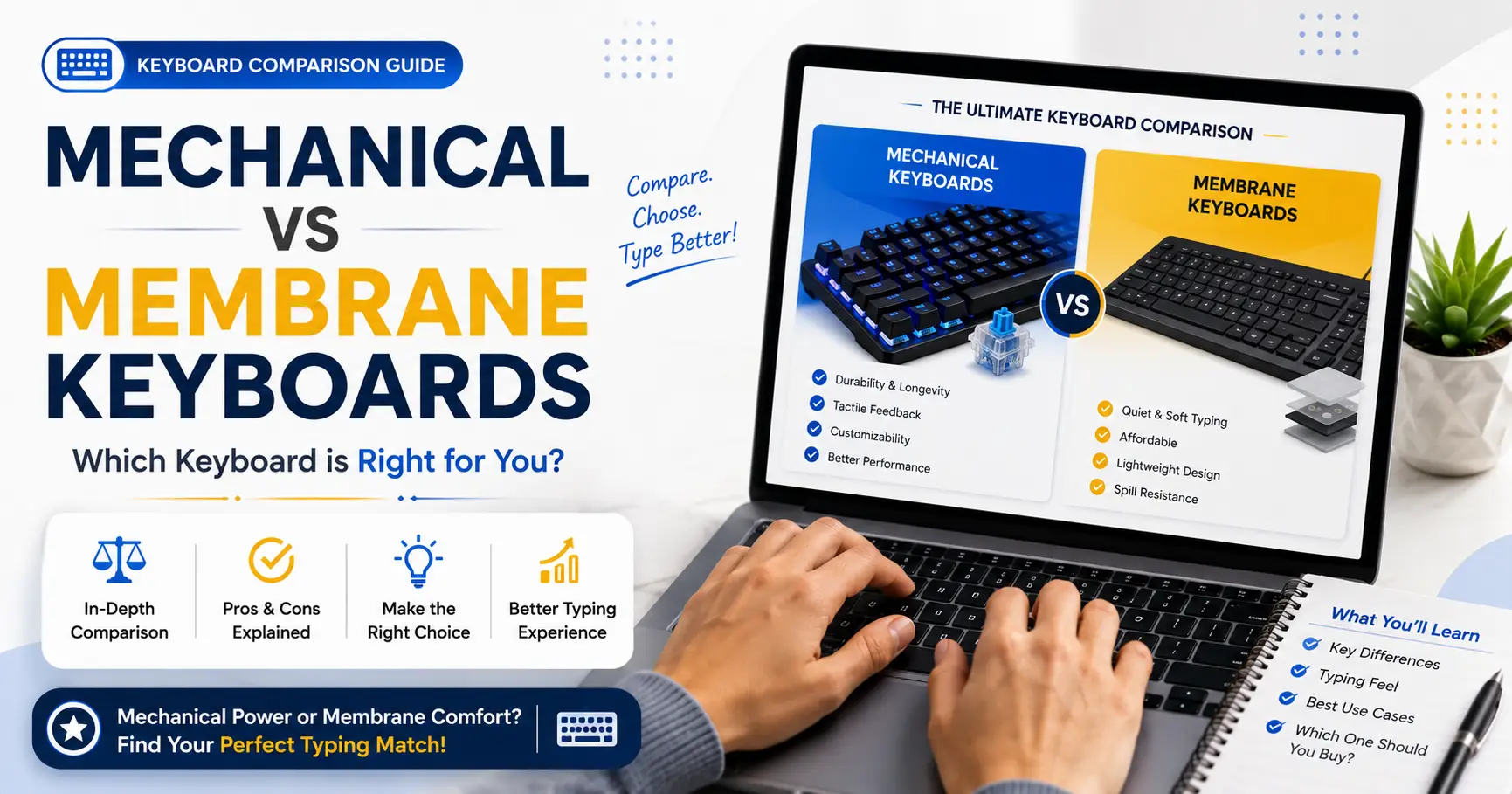
Introduction
When you sit down in front of a computer, whether you are drafting a 2,000-word essay, writing thousands of lines of code, or practicing your touch typing skills to break your personal Words Per Minute (WPM) records on TypeNest, there is one tool that stands between your thoughts and the screen: your keyboard. For decades, the humble keyboard has been treated as a basic, cheap computer accessory—something that just comes bundled for free inside a desktop computer box. Most people never give it a second thought until a key stops working or their wrists start to ache after a long day of data entry work.
However, as digital workspaces evolve and typing becomes the primary method of communication and production for millions of professionals, students, and programmers, the hardware you choose matters more than ever. Today, the tech world is split into two massive ecosystems when it comes to typing gear: Mechanical Keyboards and Membrane Keyboards. If you scroll through any programming forum, digital art community, or competitive gaming setup, you will find users who treat mechanical keyboards not just as tools, but as investments. On the flip side, membrane keyboards continue to dominate office cubicles, schools, and laptops worldwide.
But here lies the million-dollar question for anyone looking to optimize their workflow: Does a mechanical keyboard actually make you a faster, more accurate typist, or is it just an expensive marketing gimmick? Can switching from a cheap office membrane board to a premium mechanical switch reduce your everyday typo rate and prevent finger fatigue? To answer this, we need to go far beyond superficial sound tests and deep-dive into the core mechanics, everyday performance, ergonomics, and long-term economic value of both technologies. Let’s break down the ultimate keyboard showdown.
The Hidden Mechanics: How Membrane Keyboards Actually Work
To truly appreciate the difference between these two types of hardware, we must first pull back the plastic keycaps and look at the underlying engineering. Let's start with the one you are most likely using right now: the membrane keyboard.
The defining characteristic of a membrane keyboard is its unified internal structure. Unlike an independent network of components, a membrane board relies on a continuous, multi-layered sandwich of flexible sheets. At the very top layer, directly underneath the plastic keys that your fingers touch, lies a flexible silicone or rubber sheet embedded with hundreds of little raised domes. Beneath this rubber dome matrix are three distinct thin layers of plastic:
- The Top Circuit Layer: Contains printed conductive tracks and open contact points facing downwards.
- The Spacer Layer: A non-conductive insulation sheet with holes located exactly where the keys are. It keeps the top and bottom circuits apart when no pressure is applied.
- The Bottom Circuit Layer: Features another set of printed conductive points facing upwards.
When you press a key on a membrane device, your finger forces the plastic keycap down against the flexible rubber dome. As the dome collapses under your finger's pressure, a tiny carbon button or conductive pad on the inside roof of the rubber dome pushes through the hole in the spacer layer. This forces the top circuit layer to physically press against the bottom circuit layer. Once these two conductive surfaces meet, the electrical loop closes, a signal is sent to your computer's motherboard, and the corresponding letter pops up on your screen.
The moment you lift your finger, the natural elasticity of the silicone or rubber dome causes it to snap back into its original shape, lifting the keycap back up and breaking the electrical circuit. This entire process requires a very specific physical action: you must bottom out the key. Because the electrical contacts sit at the absolute bottom of the device's interior stack, the key switch must be pressed down 100% of its travel distance to register a character. This creates a soft, cushioned, and damp feel that many typists describe as "mushy."
The Engineering Marvel: Inside a Mechanical Keyboard Switch
Now, let's look at the completely different world of mechanical engineering. A mechanical keyboard rejects the concept of a shared rubber sheet entirely. Instead, every single key cap sits on top of its own completely self-contained, isolated, and highly complex mechanical switch module. If your keyboard has 104 keys, it houses 104 individual mechanical micro-switches soldered or clipped onto a rigid printed circuit board (PCB).
A standard mechanical switch module consists of four primary internal components working in perfect harmony:
- The Housing: The outer plastic shell (usually split into a top and bottom casing) that holds all the moving parts perfectly aligned.
- The Stem: The moving plastic core that the keycap snaps onto. The shape of the stem determines the travel path and the unique tactile profile of the switch.
- The Metal Contacts: High-precision gold-plated copper leaf springs that act as the gatekeeper for the electrical signal.
- The Coil Spring: A high-quality steel spring located directly beneath the stem that determines how much resistance your finger feels and snaps the key back up instantly.
The magical element of mechanical switches lies in their actuation point. Unlike a membrane system where the electrical contact is at the absolute floor of the board, a mechanical switch registers a keypress long before the key hits the bottom tray. As you press the plastic stem downwards against the resistance of the steel coil spring, a tiny plastic leg on the side of the stem pushes past the metal copper contacts. Halfway through the downward stroke—typically around 2.0 millimeters into a total 4.0-millimeter travel distance—the metal contacts are forced together.
The circuit closes, and the computer registers the input instantly, even though the key has another 2 millimeters left before it hits the physical baseplate. This design element changes everything about the dynamics of fast touch typing. Typists do not need to slam their fingers down into a hard plastic wall to type; they can lightly float across the keyboard, triggering inputs with minimal downward movement.
The Switch Universe: Linear, Tactile, and Clicky Explained
One of the greatest benefits of mechanical hardware is that it does not force you into a single, one-size-fits-all typing feel. By varying the physical shape of the internal plastic stem and altering the thickness of the metal contacts, manufacturers have created an incredible array of distinct switch profiles. These profiles are universally color-coded to help users choose their perfect typing environment:
1. Clicky Switches (The Classic Blue Switch)
Clicky switches are designed for typists who crave absolute, undeniable feedback. The most famous example is the Blue switch. Inside a clicky switch, the stem is designed with a two-piece slider mechanism. As you press the key down, the internal slider drops suddenly, striking the bottom housing and producing a sharp, metallic "click" sound at the precise microsecond the electrical circuit closes.
Simultaneously, your finger feels a sharp, clean bump. This double dose of physical and audio feedback tells your brain instantly that the character has been registered. You can immediately move your finger to the next position without wasting an ounce of energy pressing the key further down. However, because they sound like a retro typewriter, they can be incredibly loud and disruptive in shared office spaces or quiet homes.
2. Tactile Switches (The Sweet Spot Brown Switch)
If you love the physical feeling of a keypress but value your relationship with your coworkers or family members, tactile switches are the ultimate solution. The legendary Brown switch is the gold standard here. The stem of a tactile switch features a small molded ridge or "bump" on its side.
As you glide down the keypath, your finger meets a gentle wall of resistance, pushes past it, and feels a soft physical feedback bump exactly at the point of actuation. There is no loud metallic clicker inside, making the switch significantly quieter while still providing the physical confirmation required to maintain clean muscle memory and precise control on advanced typing tests.
3. Linear Switches (The Smooth Red Switch)
Linear switches are the purist's dream for pure speed and fluid movement. The Red switch is the prime representative of this group. The stem of a linear switch is completely smooth, with no bumps, ridges, or sliding clickers. From the absolute top of the keypress down to the very bottom plate, your finger experiences a perfectly smooth, consistent, and uninterrupted line of resistance.
The actuation happens silently right in the middle of the stroke. Because there is no physical bump to push past, linear switches require very little force, making them highly favored by PC gamers who need to double-tap keys at lightning speeds, as well as ultra-fast typists who prefer a light, gliding motion over tactile feedback.
Direct Head-to-Head Comparison Analysis
Now that we understand the technical layout of both systems, let's perform a comprehensive comparative analysis across the structural variables that impact daily desktop usage.
1. Actuation Style and Finger Impact
The fundamental difference between these two technologies comes down to energy transfer. On a membrane setup, every single stroke forces your finger joints to collide with a rigid base plastic layer. Over hours of continuous typing, this "bottoming out" sends tiny shocks up your fingertips, often leading to finger fatigue and joint soreness.
Mechanical designs completely bypass this stress. Because you can actuate keys mid-stroke, you can train your hands to use a technique called "soft typing," where your fingers dance lightly across the surface, never hitting the hard plastic base. This dramatically preserves hand comfort during intense typing marathons.
2. N-Key Rollover (NKRO) and Input Ghosting
Have you ever tried to type incredibly fast, or pressed multiple keys down simultaneously, only for your computer to emit a beep sound or completely ignore half of your letters? This technical limitation is called "ghosting" or low key rollover. Because membrane keyboards share a combined matrix of electrical grid traces, they can easily get confused if adjacent keys are pressed at the exact same moment. Most cheap office boards only support 2-key or 3-key rollover.
Mechanical boards, having separate circuit lines for every individual key, offer True N-Key Rollover (NKRO). This means you could literally press all 104 keys down at the exact same millisecond, and your computer would register every single input perfectly without dropping a single character. For rapid touch typists working at speeds above 100 WPM, high key rollover is absolutely essential to prevent dropped letters during fast character transitions.
3. Durability and Long-Term Reliability
When evaluating computer hardware, durability is a critical factor that often gets overlooked. A standard membrane keyboard has a relatively short life expectancy. Because the rubber sheet inside is constantly stretched, compressed, and exposed to temperature variations, the silicone material naturally degrades over time. After 5 to 10 million keystrokes, the rubber domes lose their elasticity, causing the keys to feel stiff, unresponsive, or permanently stuck. If a single dome splits or a circuit trace breaks on the shared membrane sheet, the entire keyboard becomes electronic waste and must be replaced.
Mechanical keyboards are built like industrial tanks. A typical mechanical switch from a reputable manufacturer is rated to last between 50 million and 100 million individual keystrokes. Because the return mechanism relies on a high-grade steel coil spring rather than aging rubber, the typing feel remains identical from the first day of use to the tenth year. Furthermore, if a single switch fails due to an accidental liquid spill or heavy wear, you do not need to throw the keyboard away. On hot-swappable or solder-friendly mechanical boards, you can simply pull out the broken switch and pop in a new one costing less than a dollar, making it a highly sustainable choice.
4. Customization and Maintenance
Membrane keyboards are completely sealed units. The plastic keycaps are often permanently molded or extremely difficult to remove without snapping the fragile clips underneath. If dust, hair, or food crumbs slide beneath the keys, cleaning them becomes a nightmare. Over months of usage, debris accumulates inside the rubber matrix, creating a highly unhygienic surface that actively slows down your typing movement.
Mechanical setups invite customization and easy care. Every single keycap can be easily pulled off using a simple wire tool. This open design allows you to deeply clean the entire plate within minutes, ensuring a pristine typing environment. Moreover, the customization community is massive. You can completely change the look of your setup by installing custom PBT keycaps, which offer a textured, premium feel that resists finger oil shine. You can even modify the internal sound profiles by adding dampening foam inside the case or applying specialized lubricants to the switches to create a buttery-smooth, quiet typing sound.
The Real Impact on Typing Speed and Accuracy
Now let's address the core question that brought you to TypeNest: How exactly does this hardware shift alter your actual performance data? Will investing in a mechanical setup instantly boost your Words Per Minute and lower your error rate? The answer is a nuanced yes, driven by biological feedback systems.
Touch typing relies heavily on cognitive processing and physical muscle memory. When you are typing at a high speed, your brain needs instant verification that a specific letter has been registered so it can clear the queue and execute the next finger movement. On a membrane layout, because there is no distinct physical or audible indicator mid-stroke, your brain is forced to wait until your finger feels the hard impact of the key bottoming out. This slight micro-delay adds up across thousands of words, creating a subtle mental drag that caps your peak speed potential.
Mechanical switches optimize this loop by introducing physical and acoustic markers right at the actuation point. The second your finger pushes past the tactile bump or triggers the crisp click, your nervous system receives an immediate confirmation signal. Your brain does not have to wait for the key to hit the floor. This clear communication allows you to develop a much lighter, faster, and fluid typing rhythm.
Additionally, typing accuracy sees an immediate improvement. Membrane keys have a tendency to wobble, and because the entire sheet is connected, pressing a key slightly off-center can sometimes cause the adjacent key to sink and register a typo. Mechanical switches move in a perfectly vertical, stabilized shaft. The distinct resistance curve of a tactile switch prevents accidental mistypes caused by lazily grazing nearby keys, keeping your accuracy metrics consistently high.
Ergonomics: Protecting Your Wrists from Long-Term Pain
Beyond speed numbers, we must look at the health implications of typing for multiple hours a day. Repetitive Strain Injury (RSI) and Carpal Tunnel Syndrome are serious health risks for modern computer workers, writers, and developers. Wrist and finger pain is almost always caused by two major bad habits: high impact force and unnatural hand positioning.
As we established earlier, membrane users are fundamentally trapped in a high-impact loop. Because the electrical contact point requires a full bottom-out, your fingers are constantly slamming into a solid surface. This repetitive micro-trauma travels up your finger tendons and settles into your wrists, causing inflammation and deep fatigue over time.
Mechanical keyboards actively encourage a healthier typing style. Because the keys actuate halfway down, you can master the art of gliding across the keyboard with minimal downward force. Your fingers decelerate naturally before hitting the bottom plate, drastically reducing joint impact. Furthermore, the market offers specialized ergonomic mechanical boards—such as split layouts or Alice configurations—that angle the keys to match the natural resting slope of your hands, keeping your wrists perfectly straight and completely eliminating the tension that leads to chronic nerve pain.
Economic Evaluation: Gimmick or Smart Investment?
Let's look at the numbers. A cheap office membrane keyboard can be bought for around $10 to $20. A entry-level mechanical keyboard usually starts around $40, while premium custom boards can easily range from $100 to $200. At first glance, the membrane board looks like the obvious economic winner.
However, when you analyze the cost over a multi-year timeline, the perspective shifts completely. A membrane device used heavily for full-time professional work or intense typing practice will generally wear out or lose its fresh feel within 12 to 18 months. The keys will become heavy, mushy, or completely dead, forcing you to buy a replacement. Over five years, you could easily go through three or four cheap keyboards, spending a significant amount of money on frustratingly bad hardware.
A high-quality mechanical board is a one-time purchase that can easily last a decade. Because the individual switches can be cleaned, lubed, or modularly replaced, the device never truly expires. You are paying a premium upfront not just for a luxury feel, but for a durable, reliable piece of engineering that actively protects your physical health and enhances your daily work output. When viewed as a tool for your career or education, a mechanical keyboard is one of the smartest investments you can make.
Conclusion: The Ultimate Verdict
After analyzing the layers of engineering, performance data, and health factors, the champion of the keyboard showdown is clear.
If you only use your computer occasionally to browse the web, watch videos, or type short weekend emails, a basic membrane keyboard is perfectly adequate. There is no logical reason for you to spend extra money on specialized mechanical switches.
However, if your daily life centers around a computer screen—if you are a developer writing complex software, an author crafting stories, a professional managing data, or a dedicated touch typist pushing your speed limits right here on TypeNest—a mechanical keyboard is a transformative upgrade. The immediate physical feedback, complete freedom from input ghosting, massive lifespan, and joint protection combine to create a tool that naturally elevates your productivity.
Remember, the ultimate goal of typing is to let your thoughts flow into the digital world without any mechanical friction or physical pain. Choose the hardware that honors your work, take care of your hands, and keep practicing to reach your highest potential!
Continue Learning
Choosing the right keyboard hardware is just the first step in maximizing your typing efficiency. To build balanced keyboard skills and make the most out of your mechanical or membrane setup, explore these detailed expert guides.
- Complete Beginner's Guide to Touch Typing
- Complete Guide to Increase Typing Speed
- Complete Typing Accuracy Guide
- Typing Speed Test: Everything You Need to Know
- Typing Speed Benchmarks Guide
- Keyboard Shortcuts Every User Should Know
Keep Learning with TypeNest
Whether you're learning touch typing, improving your typing speed, or preparing for competitive exams, TypeNest provides structured lessons, typing tests, expert guides, and progress tracking to help you become a faster and more confident typist.
Keep practicing, keep measuring your progress, and continue exploring our free learning resources to build keyboard skills that will benefit you throughout your education and career.
Last Updated: July 2026
Author: TypeNest Editorial Team