📑 Table of Contents
Navigate through the keyboard layout comparison.
Have you ever finished a long typing session and felt a dull ache in your wrists or fingers? If so, you are not alone. Almost every standard laptop and mechanical keyboard sold today comes printed with the classic QWERTY layout. We rarely pause to ask why the keys are placed where they are—we just learn them and move on.
Surprisingly, QWERTY was never designed for speed or comfort. It was created in the 1870s for mechanical typewriters to keep frequently paired letters far apart, preventing physical typebars from jamming. Fast forward over a century: mechanical typebars are long gone, yet we are still using a layout designed for Victorian-era mechanical limits.
This realization has led thousands of typists, programmers, and writers to explore ergonomic alternatives like Dvorak and Colemak. But changing the layout you have used your entire life is no small decision. Is the transition worth weeks of temporary slowdown, or are you better off sticking with QWERTY? Let's take a practical look at all three.
1. The QWERTY Layout: Universal, But Ergonomically Flawed
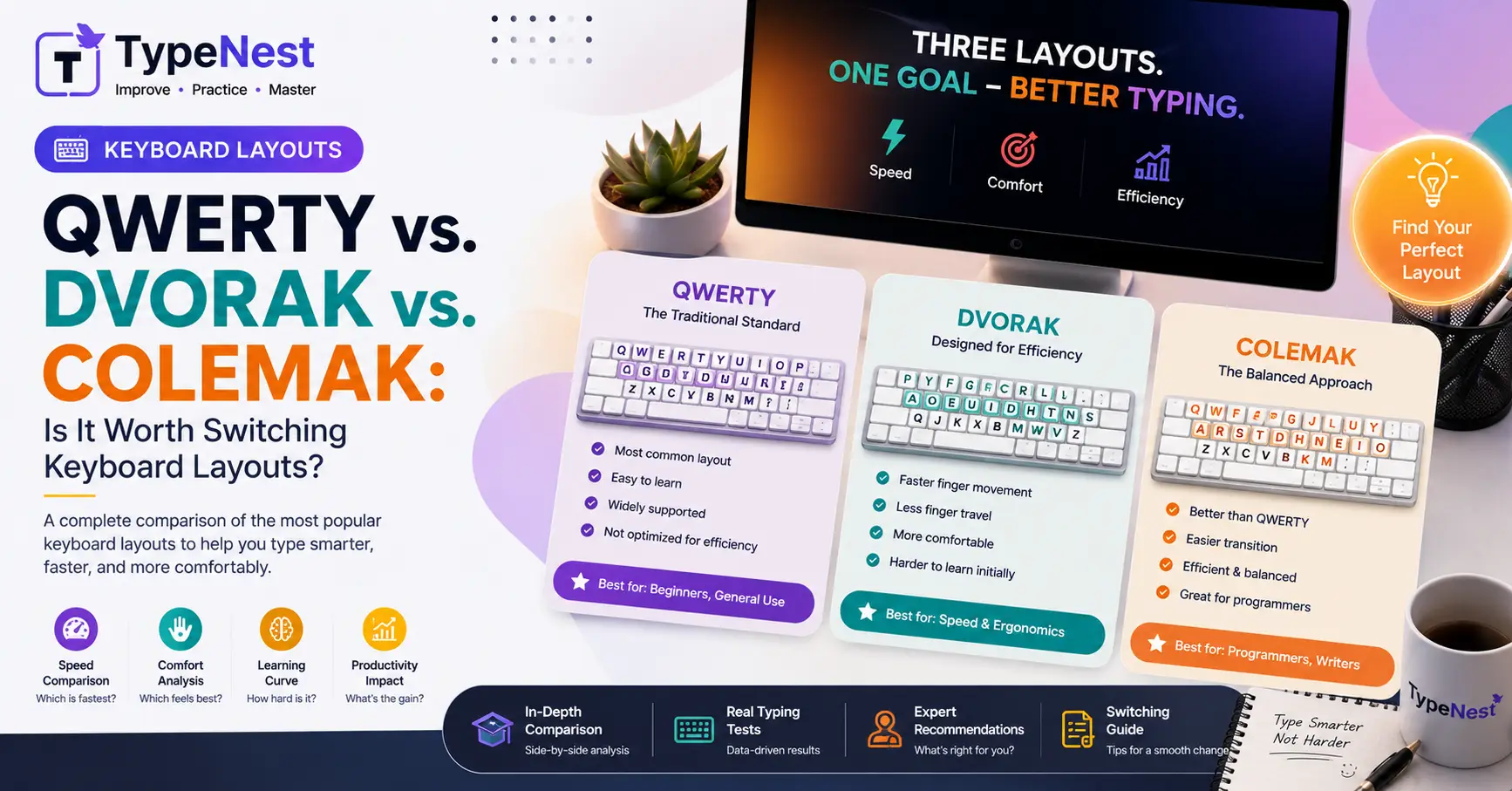
QWERTY is the undisputed global standard. Its primary advantage isn't ergonomics—it's ubiquity. Walk up to any computer anywhere in the world, and you can start typing immediately without configuring software settings or carrying a custom keyboard.
However, from an efficiency perspective, QWERTY leaves a lot to be desired:
- Low Home Row Usage: On QWERTY, only about 32% of all typing occurs on the home row (
A-S-D-F J-K-L-;). Your fingers spend most of their time reaching up to the top row or jumping down to the bottom row. - Left-Hand Bias: QWERTY forces your left hand to do roughly 57% of the work, despite most people being right-handed.
- Awkward Finger Hurdles: Common words like "minimum" force a single finger to hurdle across multiple rows repeatedly.
Despite these flaws, millions of people achieve impressive speeds on QWERTY. If you want to optimize your current setup before jumping ship, review our Complete Guide to Increase Typing Speed or explore our Beginner's Guide to Touch Typing.
2. The Dvorak Simplified Layout: Built for Maximum Efficiency
Patented in 1936 by Dr. August Dvorak, the Dvorak Simplified Keyboard was engineered specifically to fix QWERTY’s ergonomic weaknesses. Dr. Dvorak studied hand physiology and English letter frequencies to create a layout built for natural hand motion.
How Dvorak Works:
- Vowels on the Left, Consonants on the Right: All major vowels (
A,O,E,U,I) sit on the left home row, while the most common consonants (D,H,T,N,S) sit on the right home row. - Massive Home Row Focus: Around 70% of all typing happens directly on the home row. This dramatically reduces finger travel distance.
- Alternating Hand Rhythm: Dvorak promotes a natural left-right-left-right typing cadence, similar to tapping your fingers rhythmically on a table.
While Dvorak drastically reduces finger distance, it has a steep learning curve. Because almost every key is relocated, switching feels like learning to type all over again. Additionally, hotkeys like Ctrl + C (Copy) and Ctrl + V (Paste) are scattered across the board, making shortcuts awkward for designers and programmers who rely on essential Productivity Keyboard Shortcuts.
3. The Colemak Layout: The Modern Ergonomic Middle Ground
Released in 2006 by Shai Coleman, Colemak has quickly become the preferred alternative layout for modern computer users. It was designed using computer algorithms to optimize finger movement while remaining easy to learn for QWERTY users.
Why Many Typists Prefer Colemak:
- Changes Only 17 Keys: Colemak keeps 14 QWERTY keys in their original positions, meaning your muscle memory doesn't completely collapse during the transition.
- Preserves Essential Shortcuts: Crucial shortcut keys like
Ctrl + Z,Ctrl + X,Ctrl + C, andCtrl + Vremain in their exact QWERTY locations. - Ergonomic Superiority: Colemak achieves 74% home row usage—even higher than Dvorak—and heavily utilizes your strongest index and middle fingers.
- Backspace Placement: Colemak replaces the underused
Caps Lockkey with a secondBackspacekey right under your left pinky, eliminating awkward reaches to the top-right corner.
If you are interested in how hand movement impacts focus and reduces mental strain, check out our article on the Psychology of Typing & Brain Training.
Head-to-Head Comparison: QWERTY vs. Dvorak vs. Colemak
| Feature | QWERTY | Dvorak | Colemak |
|---|---|---|---|
| Primary Goal | Prevent typewriter jams | Maximize hand alternation & speed | Ergonomics & easy learning curve |
| Home Row Usage | ~32% | ~70% | ~74% |
| Finger Travel (Relative) | Highest (100%) | Very Low (~38% of QWERTY) | Lowest (~35% of QWERTY) |
Common Shortcuts (Ctrl+C/V) |
Standard | Scattered | Preserved |
| Learning Curve | Baseline | Hard (3-6 weeks) | Moderate (2-4 weeks) |
| Native OS Support | Universal | Pre-installed on Windows/Mac/Linux | Pre-installed on Mac/Linux (Easy install on Win) |
Does Changing Layouts Actually Increase Typing Speed?
Here is an honest truth that many layout advocates gloss over: switching to Dvorak or Colemak will not automatically make you a 120 WPM typist.
Typing speed is primarily driven by muscle memory, finger agility, and reading ahead—not just key arrangement. High-speed typists reach 100+ WPM on QWERTY every day. What alternative layouts do provide is unmatched ergonomic comfort. If finger travel is reduced by 60%, your hands experience far less physical fatigue over an 8-hour workday.
If wrist health and posture are your main concerns, switching layouts is best paired with solid workstation habits. Read our Typing Ergonomics Guide to ensure your desk and wrist positions are aligned properly.
💡 Who Should Consider Switching?
- Switch to Colemak or Dvorak if: You suffer from repetitive strain injury (RSI), wrist fatigue, or spend 6+ hours daily typing code or prose.
- Stick with QWERTY if: You frequently use shared public computers, take timed state exams like those covered in our Government Typing Exam Guide, or do not want to invest weeks rebuilding muscle memory.
How to Switch Layouts Without Losing Your Mind
If you decide to try Colemak or Dvorak, follow this practical approach to avoid frustration:
- Do Not Peel Off Your Keycaps: Looking down at a rearranged physical keyboard slows down learning. Keep your eyes on the screen and rely entirely on touch feedback.
- Use Tarmak (For Colemak): Tarmak is a transitional system that changes QWERTY to Colemak across 5 gradual steps, switching just 3 to 4 keys at a time.
- Practice 20 Minutes Daily: Spend 20 minutes every morning on basic drills before starting your normal day. Track your progress with accurate tools like our Typing Speed Test Guide.
- Be Patient with the "Speed Dip": Your speed will drop to 10-15 WPM initially. It usually takes about 3 to 4 weeks of consistent practice to regain your baseline QWERTY speed.
Hardware Considerations: Mechanical Keyboards & Switches
Hardware plays a significant role in your typing experience. Tactile mechanical switches or light linear switches pair exceptionally well with alternative layouts by providing immediate physical feedback without requiring heavy finger pressure.
Whether you stick with QWERTY or adopt Colemak, upgrading your hardware can improve comfort. Check out our detailed comparison on Mechanical vs. Membrane Keyboards to find the right switch setup for your hands.
Frequently Asked Questions (FAQs)
1. Can I stay bilingual in both QWERTY and Colemak?
Yes! Many typists retain "dual muscle memory." Think of it like driving both an automatic and a manual car. With practice, your brain automatically switches modes based on the keyboard layout you are using.
2. Is Colemak better than Dvorak for programmers?
Most developers prefer Colemak because it preserves QWERTY's shortcuts (Ctrl + C, Ctrl + V, Ctrl + Z, Ctrl + X) and keeps common coding symbols like brackets and semicolons easily accessible. For more developer-specific tips, read Typing for Programmers & Productivity.
3. Are alternative layouts suitable for children and students?
While children learn new layouts quickly, QWERTY remains essential for school computer labs and standardized tests. Review our Touch Typing Guide for Kids & Students for balanced learning strategies.
Final Verdict
QWERTY isn't going anywhere anytime soon, and for most casual users, it gets the job done. But if you spend your days at a keyboard and want a smoother, more comfortable typing experience, Colemak offers the best balance of modern ergonomics, shortcut preservation, and ease of adoption.
Ready to test your current setup? Benchmark your speed and accuracy on TypeNest today!
Continue Learning
Improving your keyboard experience involves more than just selecting a layout. Explore these related guides to elevate your typing performance:
- Complete Typing Accuracy Guide: Eliminate Mistakes
- Typing Speed Benchmarks: What Speed Should You Aim For?
- Common Typing Mistakes and How to Fix Them
- Top Free Typing Platforms Compared
Last Updated: September 2026
Author: TypeNest Editorial Team