📑 Table of Contents
Navigate the comparison between mobile and physical PC typing.
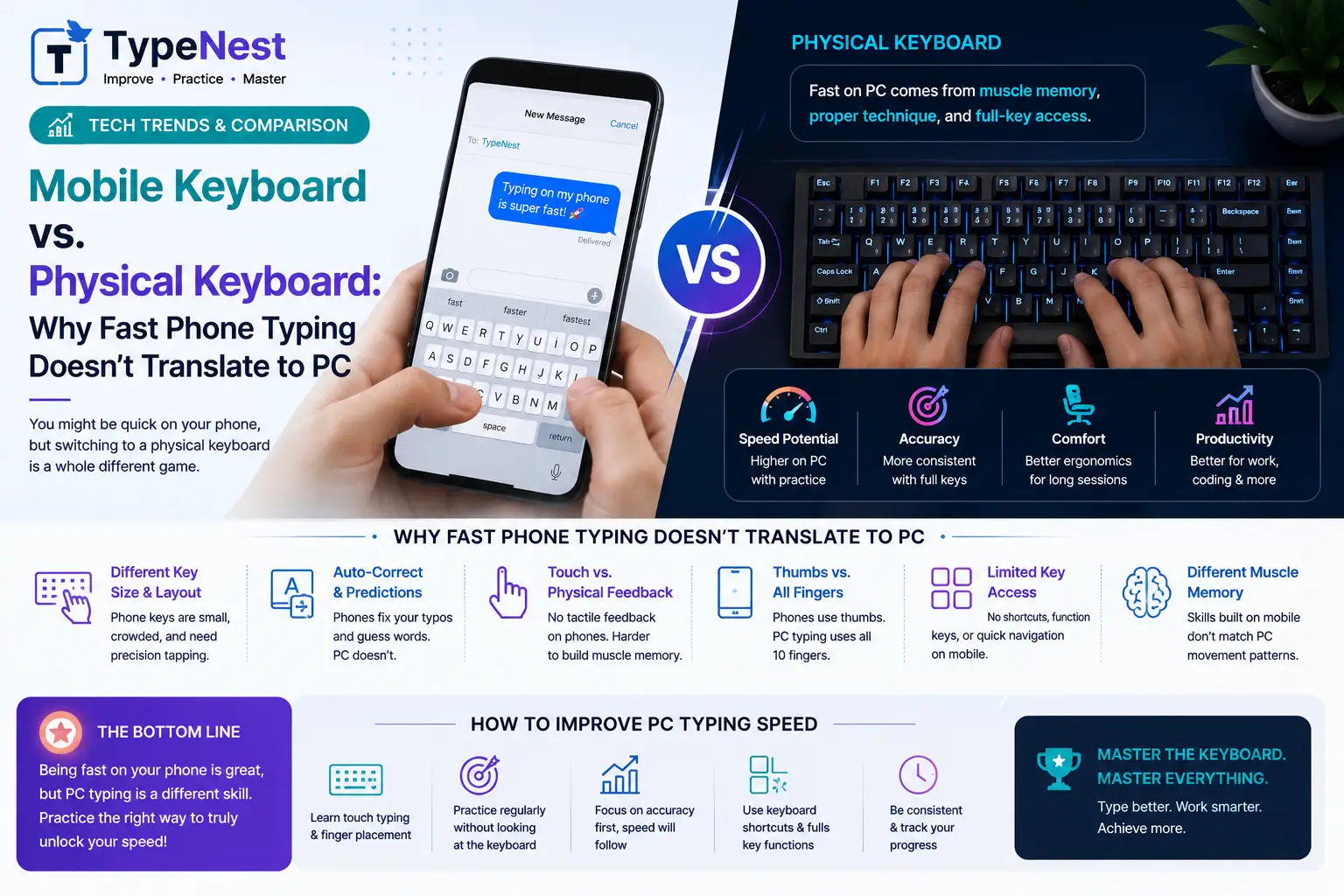
Walk into any modern workplace or university hall, and you will witness a fascinating digital paradox. Younger generations can draft long messaging threads, social media posts, and emails on their smartphones with astonishing thumb speed—frequently exceeding 50 to 60 words per minute on glass touchscreens.
Yet, when placed in front of a standard physical desktop or laptop keyboard during job screenings or state qualification tests, that rapid speed often vanishes. Suddenly, those same fast typists hunt and peck with two index fingers, struggling to hit 25 Net WPM.
Why doesn't mobile typing speed transfer automatically to physical computer keyboards? The answer lies in biomechanics, tactile sensory feedback, autocorrect reliance, and distinct motor cortex pathways. In this guide, we break down the mechanics behind both mediums and share a transition roadmap to convert your smartphone agility into professional computer typing speed.
1. The Biomechanical Split: Two Thumbs vs. Ten Fingers
The most obvious difference between mobile and desktop typing is the physical anatomy involved:
- Mobile Typing (Thumb Dominance): You rely almost exclusively on 2 thumbs operating within a compact 2.5-inch to 3-inch glass span. The distance your thumbs travel between key zones is minimal.
- Physical PC Typing (Ten-Finger Distribution): Touch typing requires coordinating all 10 fingers across a full-sized 15-inch physical surface divided into three distinct rows and peripheral clusters.
When you switch from phone to PC, your brain cannot simply apply the same muscle memory. It must build brand new motor pathways for eight additional fingers. To understand how your motor cortex automates multi-finger gestures, read our deep dive into the Psychology of Typing & Brain Training.
2. Tactile Feedback vs. Glass Friction
Physical keyboards provide tactile travel and mechanical actuation. When your finger depresses a physical mechanical or membrane switch, the key physically dips down 2mm to 4mm, giving your nervous system instant confirmation that a character registered.
Touchscreens offer zero mechanical travel. You tap against rigid glass, relying on haptic vibration motors or visual cues to confirm taps. Because glass lacks physical home-row bumps (like the tactile bump on the 5 key on the 10-Key Numpad or F and J keys), your eyes are forced to look directly at the screen keys while typing on mobile devices.
This visual dependence creates a bad habit when moving to a PC. Looking down at keycaps caps your speed, as explained in our Beginner's Guide to Touch Typing.
3. The Hidden Crutch: Smartphone Autocorrect & Predictive Text
Modern mobile operating systems (iOS and Android) rely heavily on machine learning algorithms, swipe-to-type gestures, and aggressive autocorrect engines. On a smartphone, you can miss target key centers by several millimeters, yet autocorrect seamlessly fixes the word in the background.
When taking official PC typing assessments or remote job screening tests, there is no automated predictive engine masking mechanical errors:
- Every mispressed character appears directly on screen as a typo.
- Uncorrected errors severely penalize your final Net WPM score, as calculated in The Science of WPM Calculation.
- Hitting
Backspacerepeatedly destroys flow state, detailed in our Typing Mistakes & Fixes Guide.
Detailed Feature Comparison
| Feature / Factor | Smartphone Touchscreen | Physical PC Keyboard |
|---|---|---|
| Primary Digits Used | 2 Thumbs (or 1 Index finger) | All 10 Fingers anchored on Home Row |
| Sensory Confirmation | Haptic vibration / Visual screen feedback | Physical switch travel & tactile actuation bump |
| Error Correction | Heavy AI Autocorrect & Predictive Text | Manual precision required (Direct Net WPM) |
| Average Speed Potential | 35 – 55 WPM (Capped by screen size) | 60 – 120+ WPM (Uncapped ten-finger ceiling) |
| Workplace Requirement | Casual messaging & social media | Remote Jobs, Government Exams & Coding |
💡 Why Physical Keyboard Speed Is Essential for Careers
While mobile devices are great for quick replies, professional productivity still belongs to the physical keyboard:
- State & Court Exams: Official qualification tests require 30 to 40 WPM on physical desktop systems without autocorrect assistance. See criteria in our Government Typing Exam Guide.
- Software Engineering: Coding requires typing complex syntax, brackets, and hotkeys that are practically impossible on phone keyboards.
- Long-Form Writing: Articles, corporate reports, and legal documents require ergonomic physical setups to prevent fatigue.
How to Convert Mobile Speed into Physical Keyboard Mastery
If you are fast on a smartphone, you already possess strong hand-eye coordination and vocabulary recognition. Follow this 4-step plan to transfer those mental skills to a physical desktop setup:
- Anchor on the Home Row (
A-S-D-F J-K-L-;): Resist the urge to use two index fingers like thumbs. Place all eight fingers on the middle row and assign specific key reaches. - Disable Visual Hunt-and-Peck: Keep your eyes fixed on the monitor. Trust tactile key feel rather than looking down at keycaps. Review fundamental positioning in our Speed Boosting Drills Guide.
- Aim for 98%+ Accuracy First: Since physical keyboards do not auto-fix sloppy key presses, slow down your pace until your accuracy stabilizes. Read our Complete Typing Accuracy Guide.
- Practice 15 Minutes Daily: Use structured web platforms like TypeNest to build ten-finger muscle memory gradually. Track progress using benchmarks from Typing Speed Benchmarks Across Careers.
Hardware Upgrades for a Smoother Physical Typing Experience
If laptop chiclet keys feel flat and uninspiring compared to your smooth phone screen, upgrading to an external mechanical keyboard can make the transition far more enjoyable:
- Tactile Mechanical Switches: Tactile switches feature a smooth physical bump that confirms keystrokes, making physical typing satisfying and precise. Compare choices in our Custom Mechanical Keyboards Guide and Mechanical vs. Membrane Comparison.
- Ergonomic Layouts: Explore modern layouts like Colemak to lower finger travel in Qwerty vs. Dvorak vs. Colemak Layouts.
- Gamified Transition: Make practice engaging using arcade methods detailed in Typing Games vs. Traditional Practice or break through progress walls with Overcoming Typing Speed Plateaus.
- Health & Ergonomics: Maintain wrist health and prevent eye fatigue using our Typing Ergonomics Setup Guide and Eye Strain & Dark Mode Guide. Non-native speakers can also build English fluency with our Non-Native English Typing Guide.
Frequently Asked Questions (FAQs)
1. What is a good typing speed on a smartphone screen?
The average smartphone thumb typing speed is around 38 WPM, while fast mobile typists reach 50 to 60 WPM. On a physical PC keyboard, ten-finger touch typists comfortably reach 80 to 120+ WPM.
2. Does swiping (glide typing) help on physical keyboards?
No. Swipe gestures are designed exclusively for capacitive touchscreens. Physical keyboards require distinct individual key actuations per character.
3. How long does it take to learn 10-finger touch typing if I am already fast on mobile?
Because fast mobile typists already possess excellent spelling recall and reading-ahead habits, they usually transition to physical ten-finger touch typing within 14 to 21 days of daily practice.
Conclusion
Fast smartphone thumb typing proves that your brain has great language reaction speeds—it simply needs to be mapped to a physical ten-finger keyboard. By learning proper home-row mechanics, removing autocorrect reliance, and practicing regularly on TypeNest, you can easily unlock high-speed physical typing for your career and studies.
Ready to test your true physical Net WPM? Take a standardized test on TypeNest's Speed Test Tool today!
Continue Learning
Master physical keyboard skills with these essential related guides:
- Complete Beginner's Guide to Touch Typing
- Essential Keyboard Shortcuts Every User Should Know
- Top Free Typing Platforms Compared
- Touch Typing Guide for Kids & Students
Last Updated: September 2026
Author: TypeNest Editorial Team